Pass the baton between tasks
You spin up an agent, check a PR, review some code — and come back to "where was I?". Baton remembers where each task was happening and hands you straight back to that window, tab, or terminal in one click.
- Always-on-top HUD
- Quick add with ⌥⌘Space
- One-click back to window · tab · pane
- Automatic time tracking
When you add a task, Baton saves the window you were in. Click ↗ and that window comes back to the front.
A HUD that floats above your windows
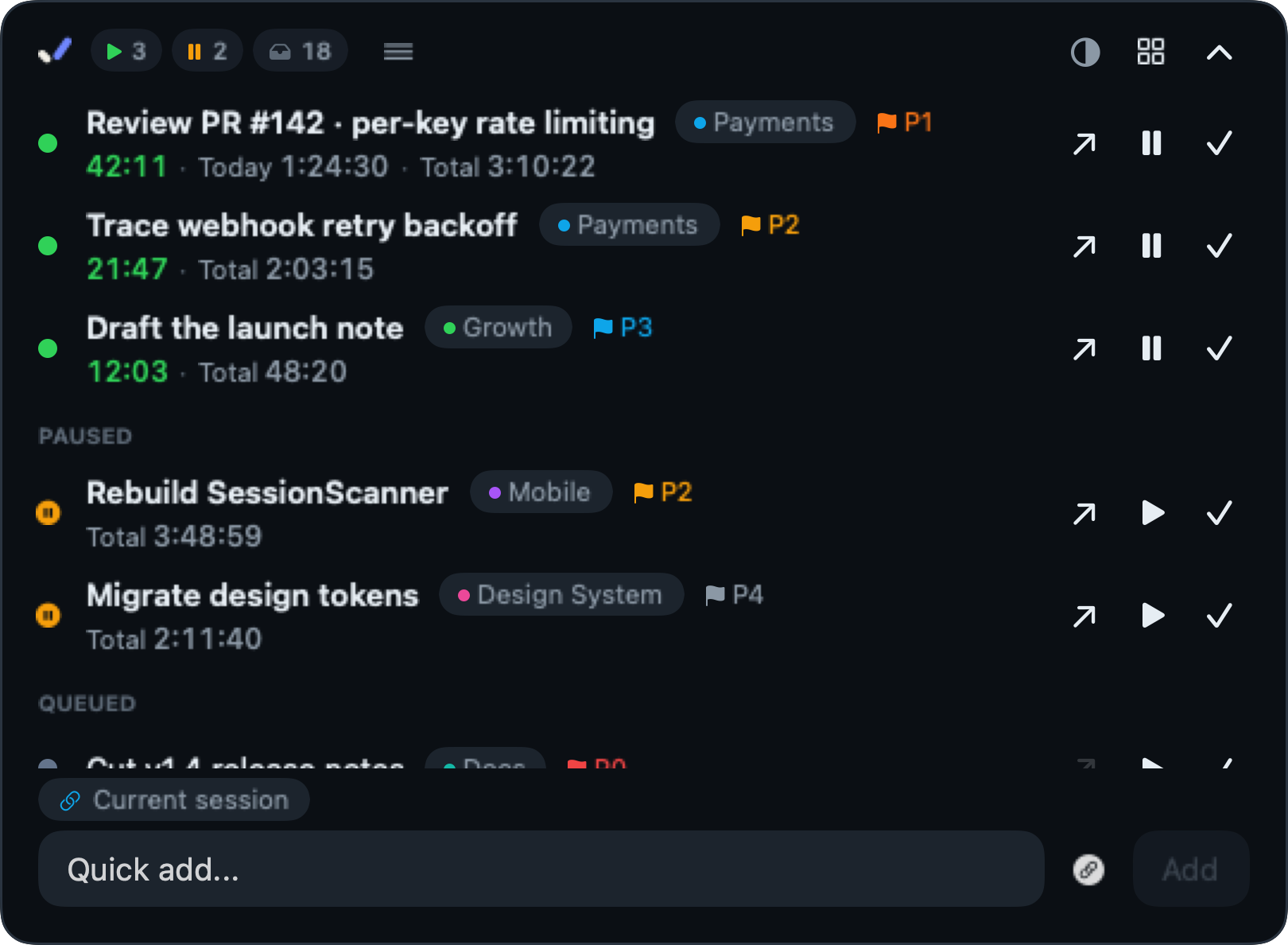
The card floats above other Spaces and full-screen apps. It shows every running task in one place. Each row has a session, today, and total timer.
Collapse to one line
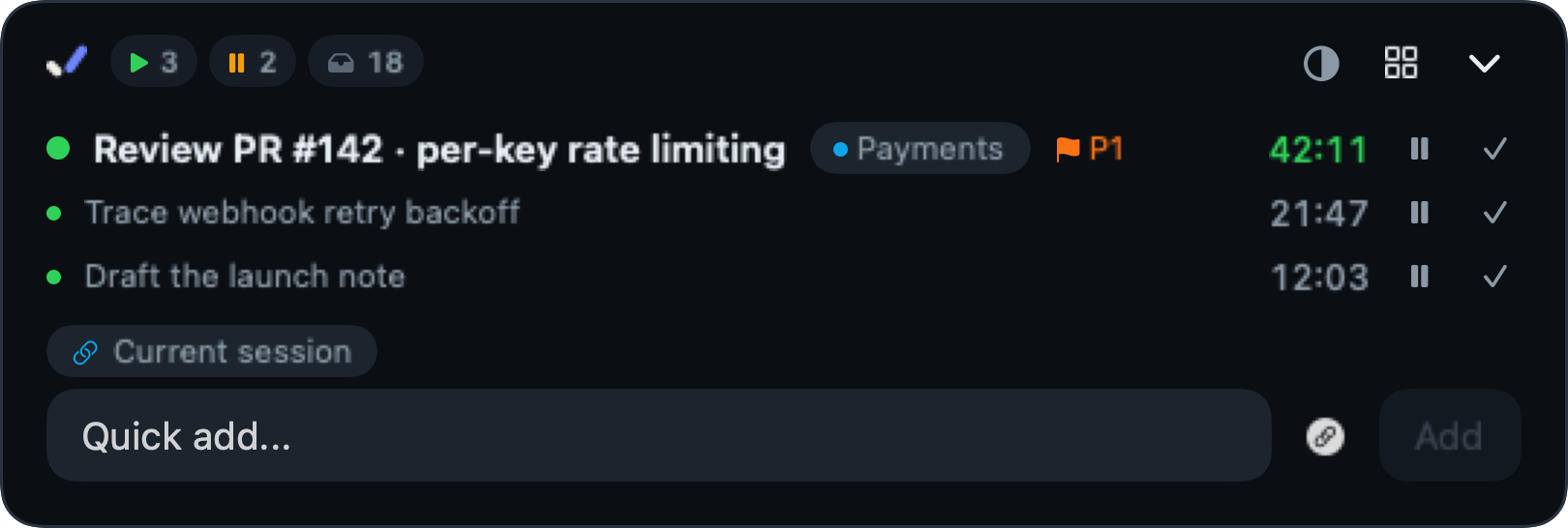
Collapsed, it shows only running tasks in one line. You can adjust its size and opacity.
Hold ⌃ to hide it
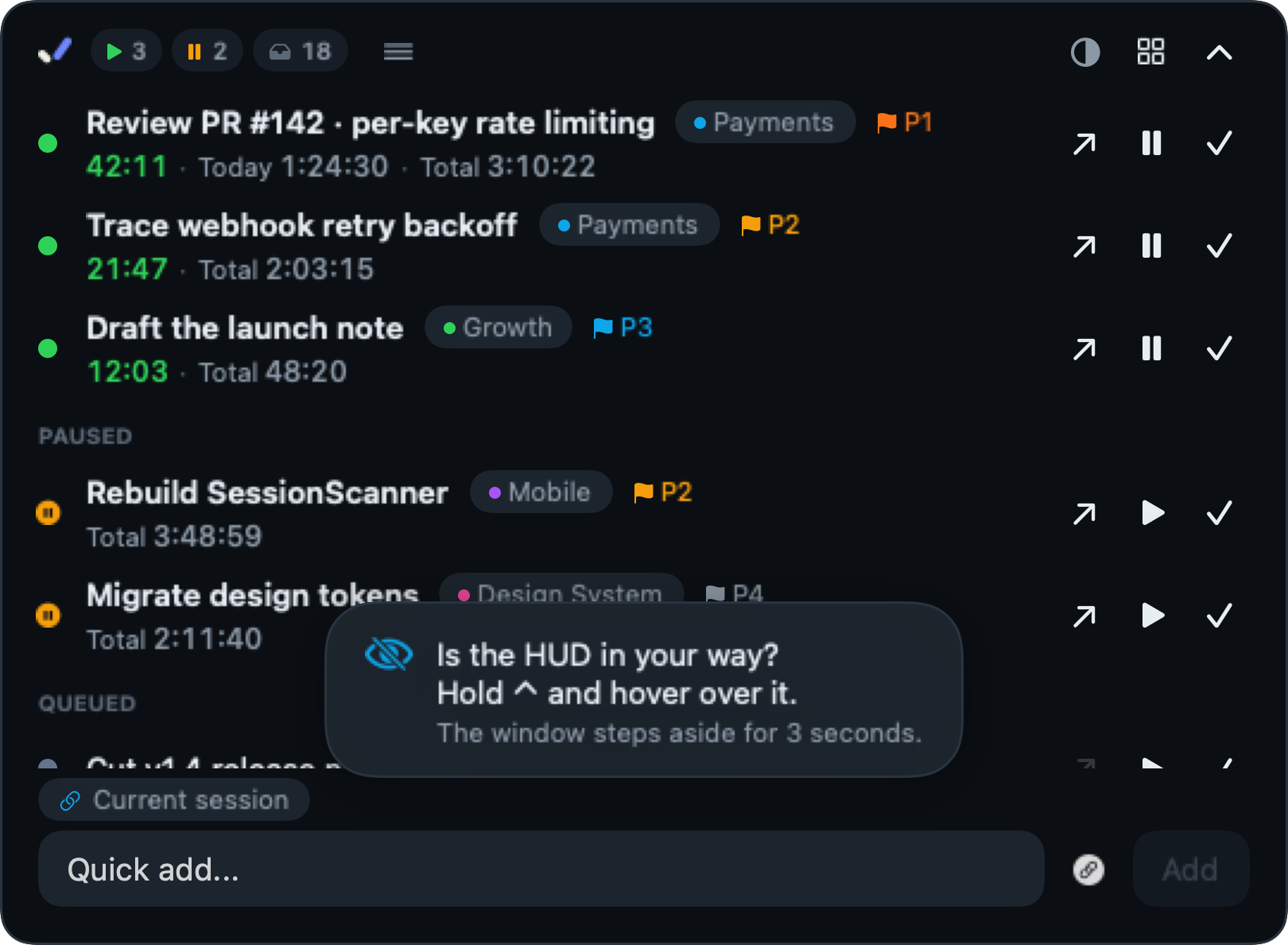
Hold ⌃ and hover the card. It disappears for three seconds so you can see the window behind it.
Add in one line
Add tasks from the HUD, the board, the menu bar, or the global ⌥⌘Space shortcut. Use symbols to set project, priority, due date, and session in the same line.
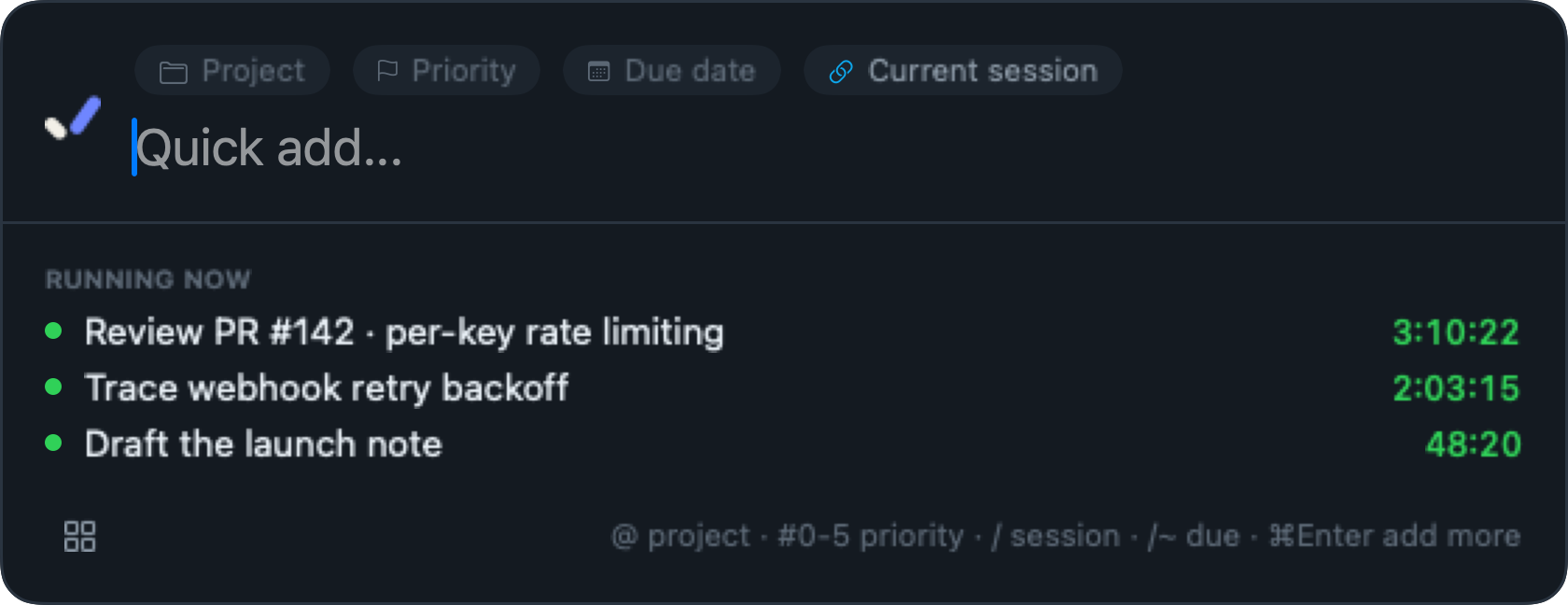
@nameSet a project. Creates it if new.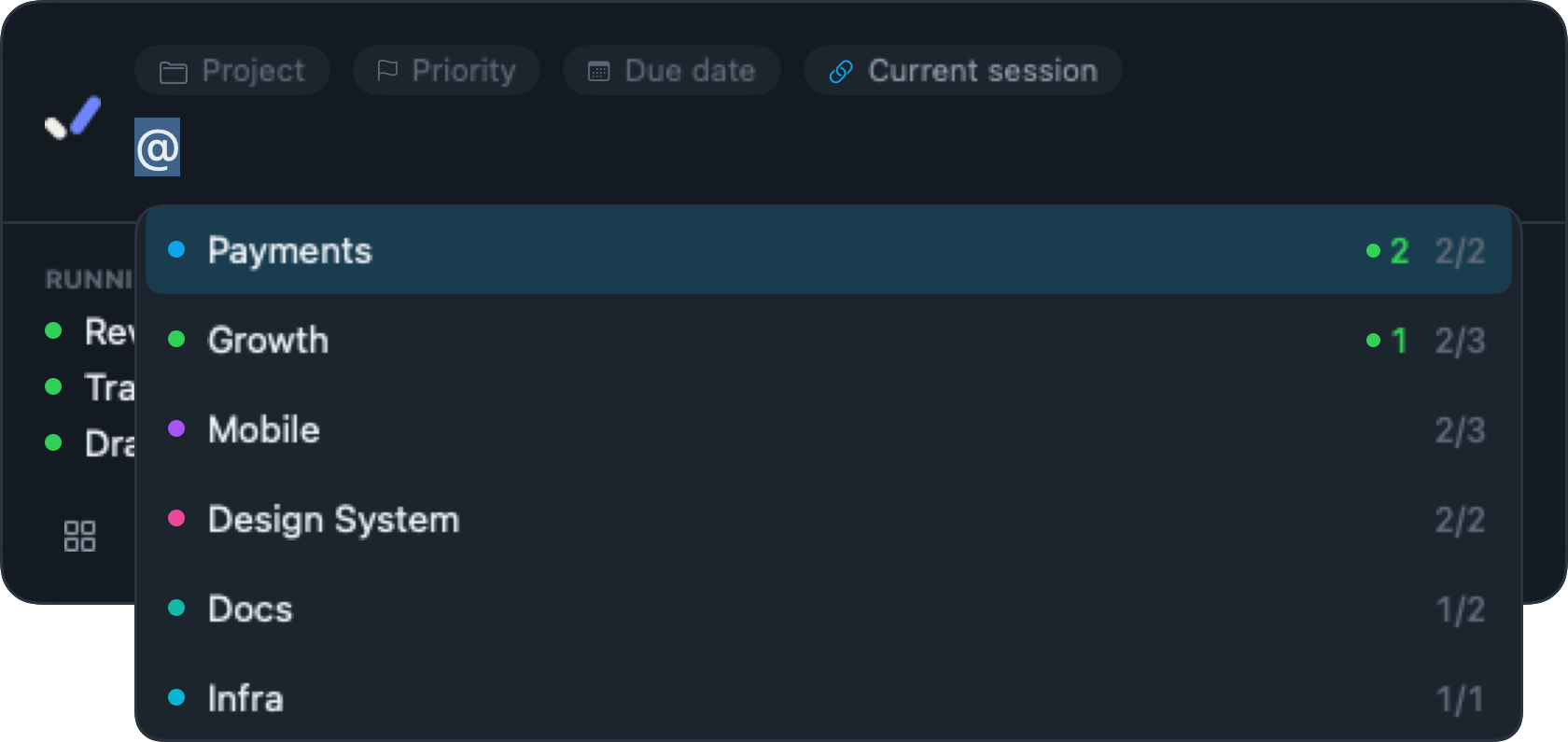
#0–#5Priority. P0 is the highest.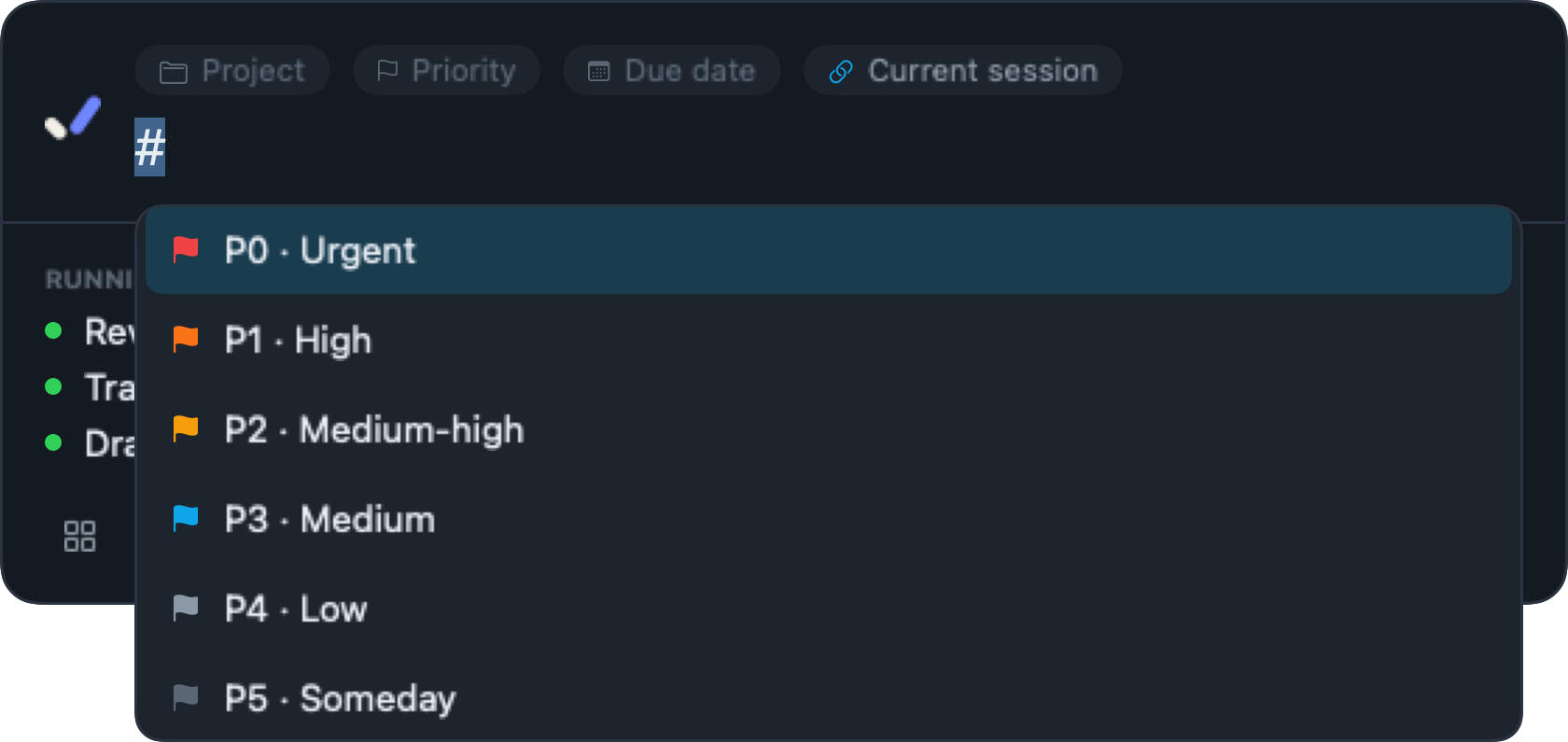
/Bind a session: the current window, tab, or pane.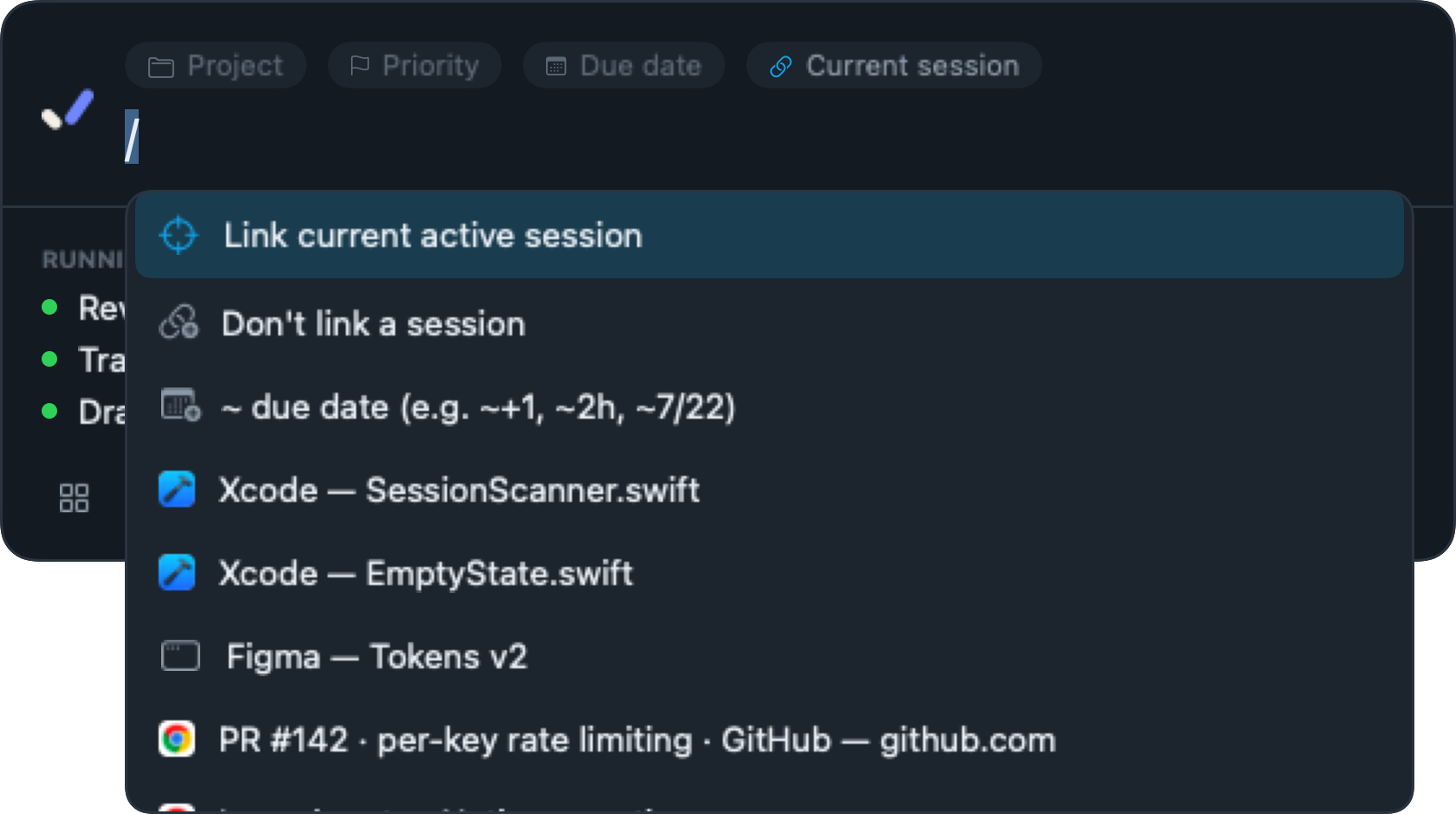
~Due date. ~+1 · ~3d · ~2h · ~7/22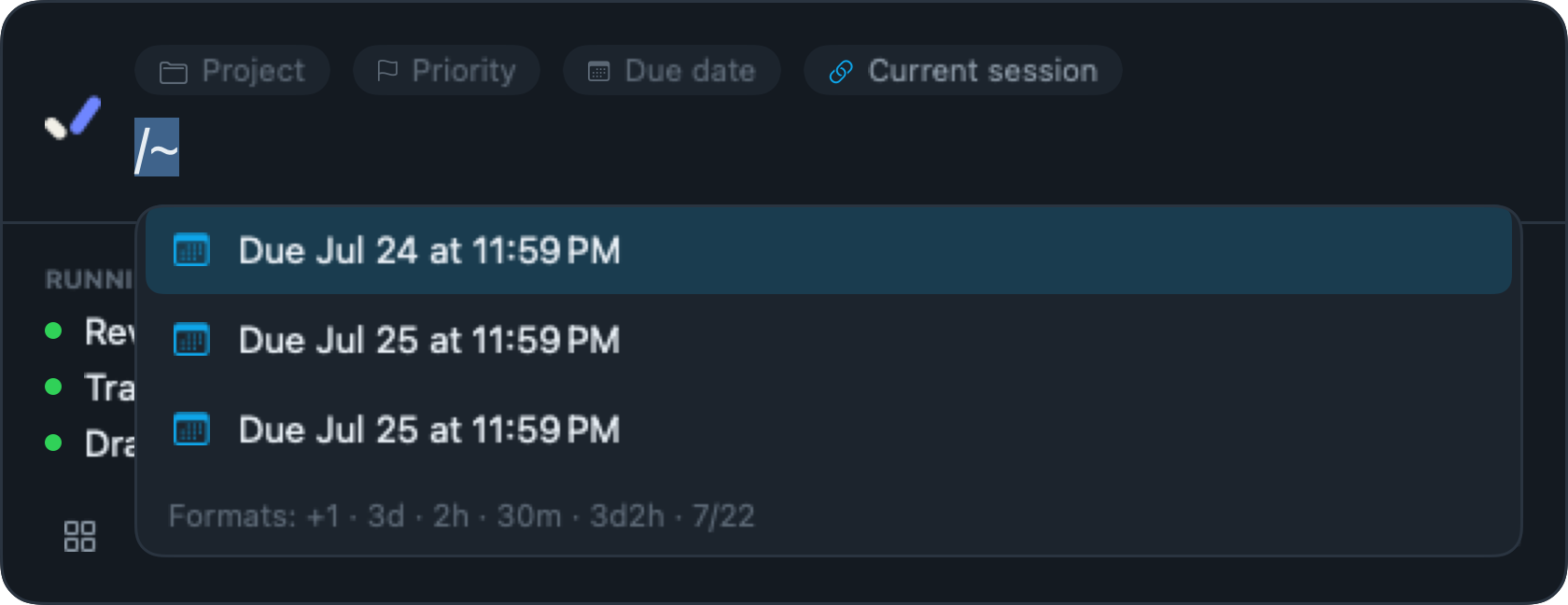
Set priority with #
Choose P0 through P5. Each has its own color in the board and HUD.
- P0Urgent
- P1High
- P2Medium
- P3Low
- P4Later
- P5Someday
⌥⌘Space⌥⌘Space remembers the window you were in before the shortcut. It also shows your running tasks.
Open a task, get the window back
The frontmost window is saved automatically just before you add a task. Click ↗ later and that window comes back to the front.
App windows
Brought to the front through the macOS Accessibility API.
Chrome tabs
Opened by URL, so it works even if you move the tab. If the tab is closed, Baton reopens the address.
tmux panes
✳Switched with the tmux CLI. Panes running AI agents like claude and codex show a ✳ marker.
The quick-add remembers the window you were in before the shortcut and shows your running tasks.
Manage everything on one screen
Projects and sessions on the left, status filters on top, a timetable on the right. Open the inspector for task details.
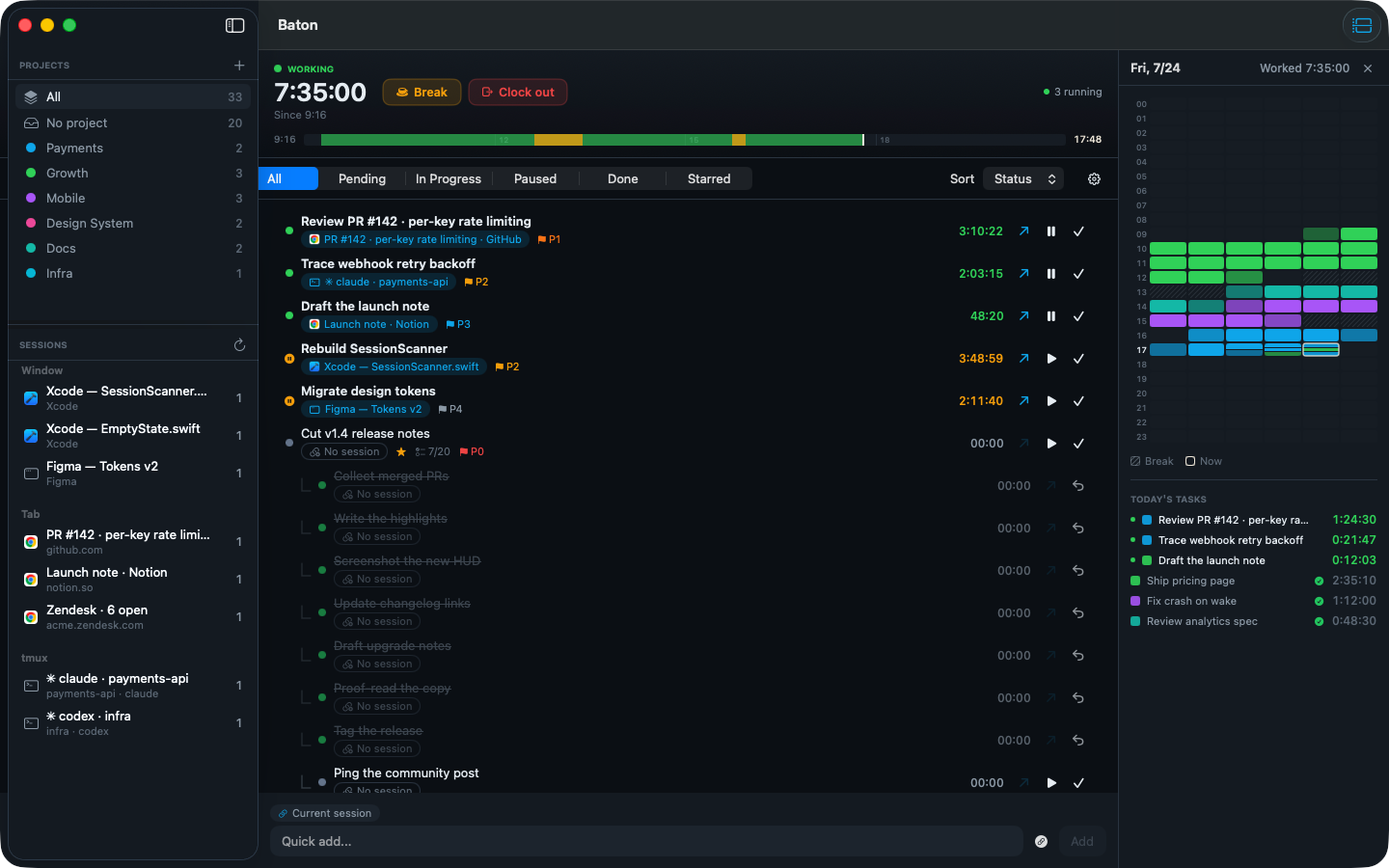
Project & session sidebar
Projects show as colored dots with counts. Open windows, tabs, and panes are grouped for quick binding.
Status filters
Filter by running, paused, queued, or done.
Task inspector
See priority, due date, subtasks, and activity history in one panel.
Today's timetable
The right panel shows today's time entries as colored blocks by project.
Clock in, break, clock out
Clock in, break, resume, and clock out are recorded automatically. Starting a task clocks you in. Clocking out creates a day summary. It tracks time, not location.
- 1
Clock in
Starting a task clocks you in.
- 2
Break
Pauses running tasks and saves them.
- 3
Resume
Restarts the tasks you had running.
- 4
Clock out
Ends the day and creates a summary.
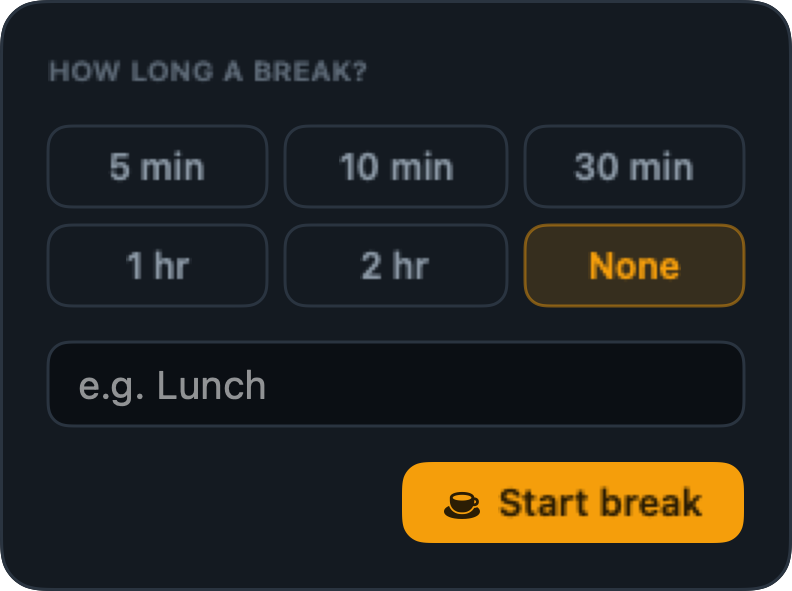
Pick 5, 10, or 30 minutes, one hour, or two, or set no length. Running tasks pause and are saved while you are away.
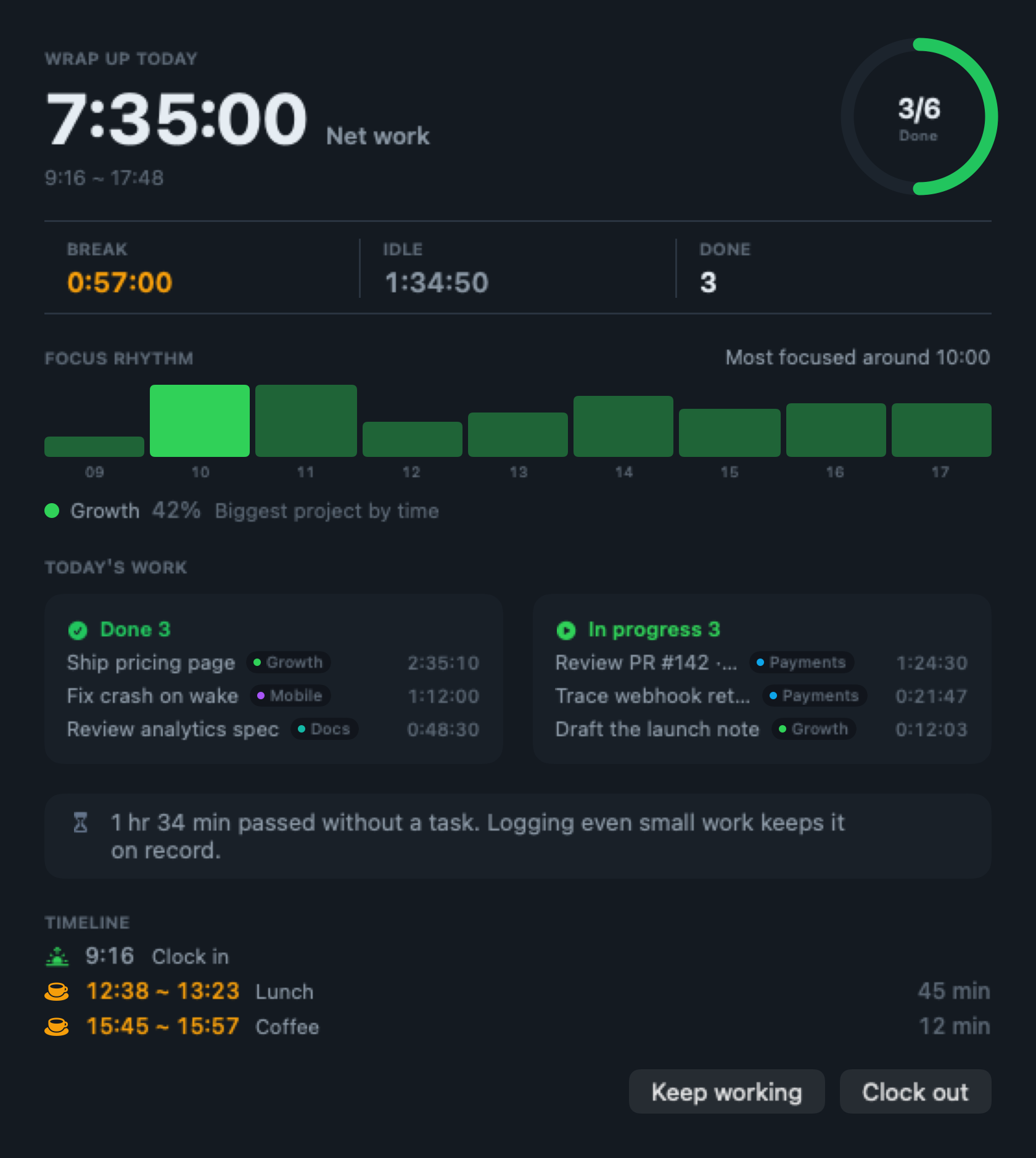
The day summary
Net worked time, total breaks, completed tasks, your focus by time of day, the project you spent longest on, and task counts by state. It appears when you clock out.
Your task data is stored on your Mac
Tasks, timers, and projects live in a SQLite file on your Mac and are not sent to a Baton server. Anonymous usage statistics are collected separately, and you can turn them off in settings.
Try it free for 14 days
Start without a card. Pay only if you want to keep it.